Most Google Business Profile remodeling advice is about upkeep: post every week, add photos, ask for reviews. All of that assumes the profile underneath was set up correctly. Often it wasn’t. It was claimed in a hurry years ago, the category was a guess, and the address showing on it is the owner’s house.
This post covers Google Business Profile setup only: five steps, in order, each one checked against Google’s own help pages. The work fits in an afternoon. The one part you can’t hurry is Google’s review of your verification.
Google says that businesses with complete and accurate info are more likely to show up in local search results. Your Google Business Profile is also what a homeowner sees when they search your company name, including the ones who clicked an ad first.
What to have ready before you start
- The Google account that should own the profile. Use one the company controls, not an employee’s personal Gmail.
- Your business name, exactly as it appears on your trucks, your website, and your contracts.
- The phone number that rings your office.
- A list of the towns you work in.
- Your logo, 10 to 15 photos of finished projects, and two or three of the crew and the truck.
Step 1: Claim the profile and get it verified
First find out whether a Google Business Profile already exists for the company. Search your business name and city in Google Maps. If a profile shows up and nobody has claimed it, select “Claim this business,” then “Manage now.” If nothing shows up, go to business.google.com/add and create one. If you already manage a verified profile, check the name and the owner list below, then go on to Step 2.
When Google asks for the business name, give it the real one. Google’s guidelines for representing your business say the name should match what is on your signs, website, and stationery. Adding a service or a town to it is against the rules. “Smith Remodeling” is a name. “Smith Remodeling Kitchens and Baths [Your City]” is not.
If someone else already manages the profile, such as a former employee or an old marketing company, Google shows a “Request access” option. The current owner gets an email and has 3 days to respond. If they don’t, Google may give you the option to claim the profile yourself. Go through that process. Google’s guidelines allow one profile per business, so don’t create a second.
Then comes verification. Google decides which verification methods you are offered, and you can’t change them. The methods are phone or text, email, a video recording, a live video call, and a postcard by mail. Sometimes Google asks for more than one.
If you are offered the video recording, plan it before you film. Google wants to see three things:
- Where you are. A street sign or the businesses nearby.
- Your business or equipment. Google’s examples are branded equipment and marketing materials. For a remodeler, a lettered truck and your tools fit.
- Proof you manage it. Google’s example is access to areas only staff can get into.
Google says verification reviews take up to 5 business days, and most postcard codes arrive within 14 days. While you wait on a mailed code, leave the business name, address, and category alone. Google says the code won’t work if you edit them.
What to look out for: once you are in, open the Business Profile settings and find “People and access.” Check who is listed. The company’s owner should be the primary owner. Anyone who helps with marketing can be a manager. A manager can edit the profile but can’t add or remove people.
Step 2: Choose your categories
The category on a Google Business Profile tells Google what kind of business this is. You get one primary category and up to 9 more. Google’s rules for choosing them are short.
- Pick the most specific category that fits. Google’s own example is “Nail salon” over “Salon.” For a company that only does kitchens, that means a kitchen remodeling category over a general contractor one.
- Use as few as you can. A category should finish the sentence “This business is a…” It is not a list of everything you offer. That list goes in Step 4.
- Don’t use a category as a keyword. Google’s guidelines say categories are not there to describe features of the business.
You can’t write your own category. Start typing “remodel,” “kitchen,” or “bathroom” into the box and choose from what Google shows.
For the primary category, I’d choose the kind of project you most want to win, as long as it is also work you do every month. If kitchens are most of your jobs and the work you advertise, a kitchen category belongs first. If you take kitchens, baths, additions, and whole-house work about equally, the general remodeling category is the honest choice. Add a kitchen or bathroom category as an additional one only when that work is a real share of the business.
What to look out for: Google says that adding or editing a category can mean verifying the business again. Choose carefully now, and don’t swap the primary category every few weeks to see what happens.
Step 3: Set your service area and decide what your address does
This is the part of a Google Business Profile where a remodeler is most likely to break Google’s rules without knowing it.
Google treats three kinds of business differently:
- A storefront. Customers come to you.
- A service-area business. You go to the customer and don’t serve them at your address. This is most remodelers.
- A hybrid. You do both. A remodeler with a showroom or design center fits here.
If you are a service-area business, Google’s guidelines say you should hide your address from customers. That covers the remodeler who runs the company from home, or from a shop no homeowner visits. Homeowners then see your service area, not your street address.
Two kinds of address are not allowed at all: a P.O. box, and a virtual office you rent but don’t work from.
If you have a showroom, you can show the address and set a service area as well. Google’s condition is that the location is staffed by your team and able to receive customers during the hours you post.
Then set the service area. Go to “Edit profile,” then “Location,” then “Service area.” Google’s service area rules are specific:
- You can add up to 20 areas.
- Each one can be a city, a postal code, or another area you serve.
- The whole service area shouldn’t reach more than about 2 hours of driving time from where you are based.
Google describes the service area as a way for people to know whether you will come to them. Treat it that way. List the towns where you want work, and leave off the ones you would turn down because of the drive.
Step 4: Fill in your services, description, and hours
Categories say what the business is. This step says what it does and when.
Services. Select “Edit services.” Google suggests services based on your category, and “Add custom service” lets you write your own. Each service can carry a description and a price. List the project types you want: kitchen remodels, bathroom remodels, additions, basements, whole-home renovations.
Leave off the work you don’t want calls about. If small repairs are listed on your Google Business Profile, you will get small-repair calls. I call that the Tire Kicker Tax: the wrong leads cost you time even when they cost no money.
The price has its own field. Keep prices and phone numbers out of the service name itself, because Google rejects custom services that include them. I’d leave the price field empty for large projects unless your website already publishes a starting price. If it does, use the same figure in both places.
Description. You have 750 characters, and the text shows in the “From the business” section of the profile. Google wants it to cover the services you offer and the mission and history of the business. Links are not allowed, and the description shouldn’t focus on promotions, prices, or sales. A plain structure works: what you build, where, and how you run a job.
[Your Company] designs and builds kitchen remodels, bathroom remodels, and home additions in [Your City] and the nearby towns. We are a licensed and insured design-build team and have been remodeling homes here since [year]. Every job has one project manager from the first measurement to the final walkthrough.
Change every part of that to what is true for you.
Opening date. Add the month and year the business opened.
Hours. Google asks for your regular customer-facing hours. For a remodeler, I’d read that as the hours someone answers the phone, not the hours crews are on a job site. Use “special hours” for holidays. If calls during posted hours often reach voicemail, shorten the hours or set up a missed-call text-back.
Attributes. Under “Edit profile,” then “More,” Google lists attributes for your category, such as veteran-owned and women-owned. Mark the ones that are true.
Step 5: Add your first photos and check every way to reach you
Photos. Google has three kinds: a logo, a cover photo, and business photos. Google’s photo guidelines ask for JPG or PNG files between 10 KB and 5 MB, at least 250 pixels on each side, in focus and well lit. Significant alterations and heavy filters are out. Phone photos can run over 5 MB, so check the file size if an upload fails.
For setup, add:
- Your logo.
- A cover photo. Use a wide shot of your best finished project. Google notes that the photo you choose won’t always be the first one shown.
- 10 to 15 finished project photos, spread across the project types you listed in Step 4.
- Two or three of the crew and the truck, so a homeowner can see who shows up.
Use your own jobs, not stock photos. For what makes a project photo persuasive, see how to use before and after photos.
Phone. Google asks for a local number over a call center line, and for a number that belongs to the business itself. You can add up to 2 more numbers beside the primary one. If you want to count the calls the profile produces, that is a job for call tracking.
Website. Enter the full address of your own site, not a link that redirects somewhere else. Send it to the page that matches your primary category. For a general remodeler that is the homepage. For a kitchen specialist it can be the kitchen page. What that page has to do next is covered in the remodeling website that converts.
Chat. Under “Edit profile,” then “Contact,” there is a “Chat” field. It takes a phone number that can receive text messages, or a WhatsApp link. Google offers it only in select countries and regions, so you may not see it. Turn it on only if someone will answer those texts the same day.
Google reviews edits before they go live, so a change may not appear right away.
What comes after the setup
Setup is the part you do once. Three things come after it.
Reviews. A finished Google Business Profile with no reviews gives a homeowner little to go on. The method is in how to get Google reviews for your remodeling business.
Upkeep. New project photos as jobs finish, and hours that stay accurate through the holidays.
The rest of local search. Your Google Business Profile is one piece. Your website’s service pages and your listings on other sites are the others, and local SEO for remodeling businesses covers them.
Keep one limit in mind. The profile is free and it builds slowly, but you can’t turn it up when the schedule has a gap. In a remodeling marketing plan, that makes it a support and not the engine. The source you can turn up is paid search: Google Ads and Local Services Ads.
Wrapping it all up: the Google Business Profile remodeling setup checklist
Careful setup is what makes the later upkeep worth doing. Here are the five steps on one page.
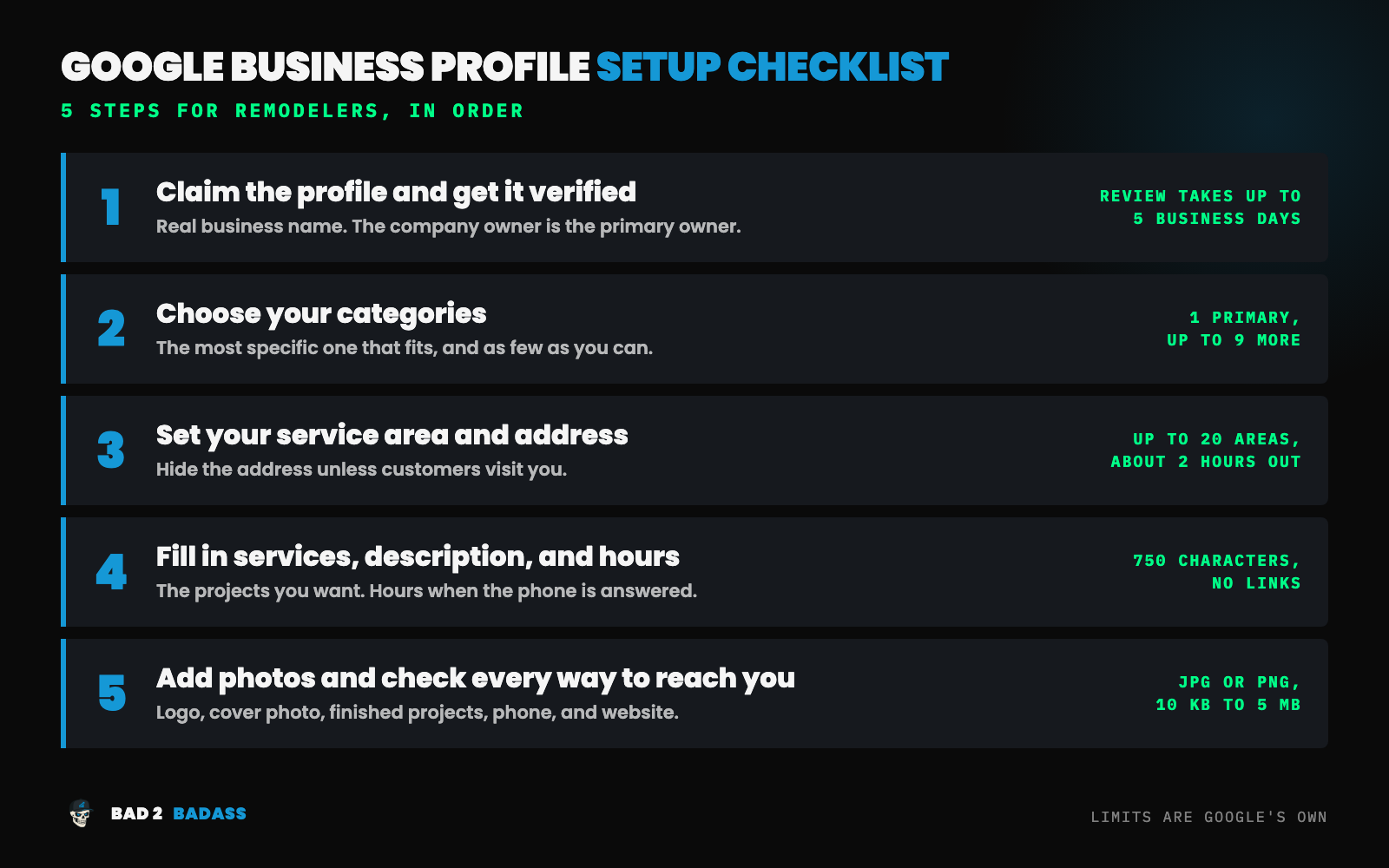
- Claim and verify. Real business name, the right owner, verification finished.
- Categories. One specific primary category, plus only the additional ones that describe the business.
- Service area and address. Address hidden unless customers visit you. Up to 20 areas, all within about 2 hours.
- Services, description, hours. The projects you want, 750 honest characters, and hours when the phone gets answered.
- Photos and contact. Logo, cover photo, finished projects, and a phone number and website that go where they should.
If your Google Business Profile has been live for years, start with Steps 2 and 3, because those are the two I’d expect to find wrong.
Running Google Ads next to your Google Business Profile?
I don’t set up or manage Google Business Profiles. Everything above is yours to do, or to hand to whoever looks after your local SEO. What I do is paid search: Google Ads and Microsoft Ads for remodeling companies selling $20K+ projects.
If you are paying for ads and can’t say what they produce, that is what the BAD-ectomy™ is for. It is a $297 diagnosis delivered in 5 business days. It looks at your paid search and at what happens to those leads afterward. You get the three biggest things holding back growth, a map of where opportunities are leaking, and a 90-day plan for what to fix first. Nothing in your account gets changed, and the findings are yours whether or not we work together.
Not ready for that? Book a discovery call.